Understand Vim: The Editor as a Language
The problem with learning Vim is not that it's hard to do—it's that you have to keep doing it. Daniel Miessler

Vim has a reputation for being strange, old, and slightly hostile to newcomers. You open a file, start typing, and suddenly nothing behaves like a normal editor. But that is also the point: Vim is not really a text box with shortcuts. Vim is closer to a small language for editing text.
This short version is inspired by Daniel Miessler's excellent original article, "Learn Vim For the Last Time". Daniel has a rare talent for turning technical habits into clear mental models, and his Vim piece is one of those posts that has been passed around admin chats, terminal nerd circles, and "I swear this time I will finally learn Vim" moments for years.
So: credit where it belongs. The original idea and deeper walkthrough are Daniel Miessler's. This article is a shortened, simplified version for people who want the core idea without reading a full Vim novella.
 Georg Koller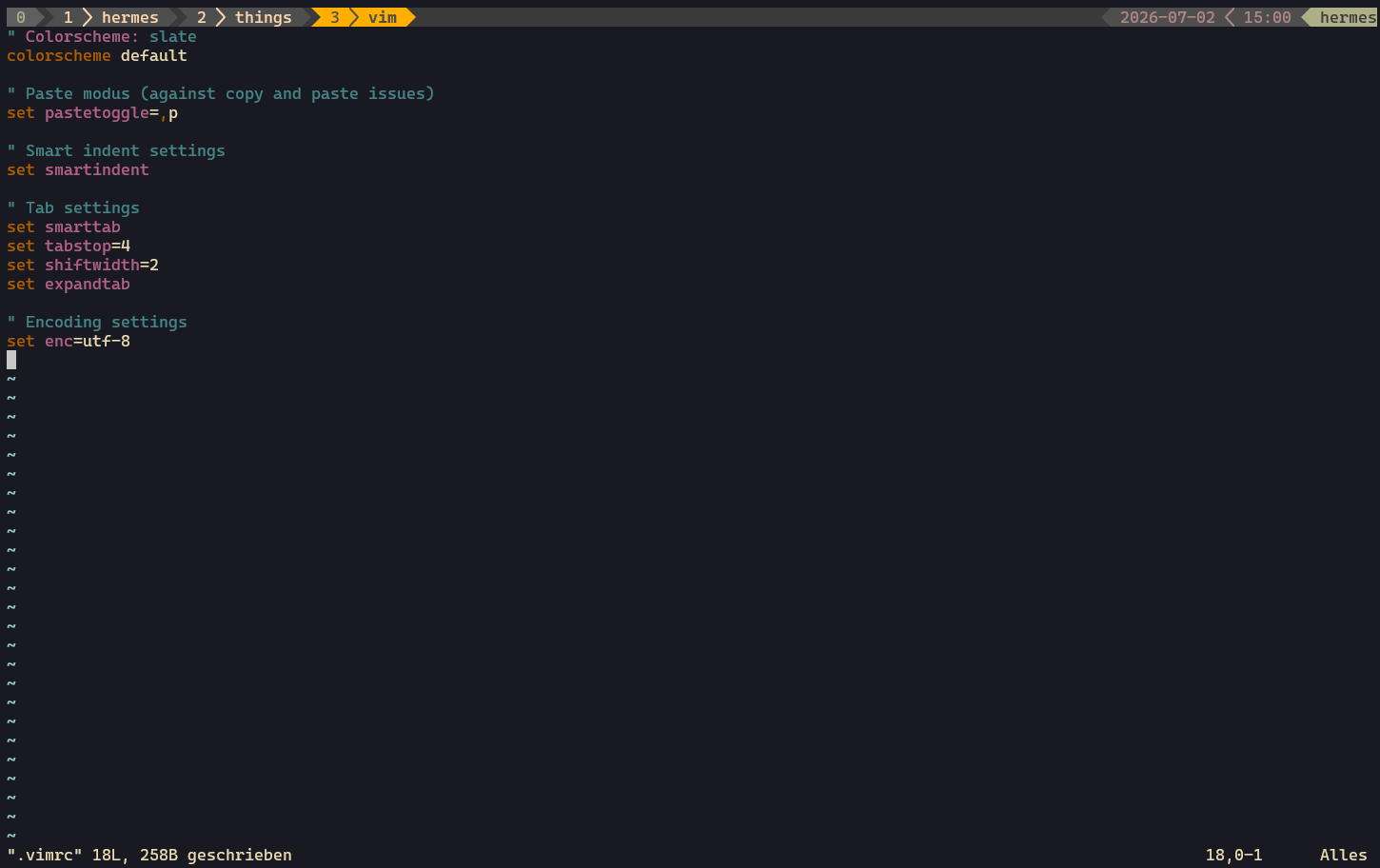
Why Learn Vim?
There are three practical reasons:
- Vim is everywhere. On almost every Linux or Unix system, some form of
viorvimis available. - Vim scales. It can be used to fix one config file over SSH or to edit whole projects.
- Vim is precise. Once you understand the grammar, editing text becomes faster and more intentional.
For system administrators, engineers, and self-hosters, Vim is especially useful because you often end up inside SSH sessions, containers, rescue shells, appliances, and servers where a full IDE is not an option.
The First Thing to Understand: Modes
Vim separates writing text from commanding the editor.
The three modes you need first:
- Normal Mode — move around, delete, copy, change, search.
- Insert Mode — type text.
- Visual Mode — select text and then operate on it.
When Vim opens, you are in Normal Mode. To start typing, press i. To return to Normal Mode, press Esc.
i      enter Insert Mode
Esc    return to Normal Mode
This is the first big mental switch. In most editors, typing is the default. In Vim, commanding the editor is the default.
Vim as a Language
The real trick is that Vim commands can be composed like small sentences.
Common actions:
d   delete
c   change
y   yank / copy
v   visually select
Common targets and motions:
w   word
$   end of line
0   beginning of line
}   paragraph
)   sentence
Now combine them:
dw    delete word
d$    delete to the end of the line
ci"   change inside quotes
yy    copy the current line
dd    delete the current line
That is the core of Vim. You do not memorize thousands of random shortcuts. You learn a handful of verbs and nouns, then combine them.
Moving Around
The classic movement keys are:
h   left
j   down
k   up
l   right
But larger movements matter more:
w    move forward by word
b    move backward by word
0    beginning of the line
$    end of the line
gg   top of the file
G    bottom of the file
Searching is done with /:
/include
Then use n for the next match and N for the previous one.
Files: Open, Save, Quit
The survival kit:
vim file.txt     open a file
:w               save
:q               quit
:q!              quit without saving
:wq              save and quit
If you only learn one tiny Vim emergency kit, learn that.
Editing Basics
Useful everyday commands:
i       insert before cursor
a       append after cursor
A       append at end of line
x       delete character
dd      delete line
yy      copy line
p       paste
u       undo
Ctrl-r  redo
One of Vim's best commands is the dot:
. repeat the last change
Example:
dw      delete one word
.       delete another word
It sounds small, but repeating actions is where Vim starts to feel fast.
Search and Replace
Search for foo:
/foo
Replace foo with bar in the whole file:
:%s/foo/bar/g
Replace only on the current line:
:s/foo/bar/g
The % means "the whole file".
Text Objects: The Cheat Code
Text objects are one of Vim's best features. Instead of selecting text manually, you describe the thing you want to operate on.
Examples:
iw   inside word
aw   around word
i"   inside quotes
i)   inside parentheses
ip   inside paragraph
Combine them with actions:
ci"   change everything inside quotes
di)   delete everything inside parentheses
yip   copy the current paragraph
This is where Vim becomes more than an editor. You are no longer thinking in characters. You are thinking in text structures.
Visual Mode
Visual Mode is useful when you really do want to select something manually:
v       character selection
V       line selection
Ctrl-v  block selection
Then apply an action:
y   copy
d   delete
>   indent
<   outdent
Visual Mode is easy to understand, but over time text objects are often faster.
A Small Sensible vimrc
You do not need a giant Vim configuration to get started. A small one is enough:
set number
set relativenumber
set expandtab
set tabstop=4
set shiftwidth=4
set ignorecase
set smartcase
set incsearch
set hlsearch
syntax on
Optional: map jk to Escape, so you can leave Insert Mode without reaching for the Escape key:
inoremap jk <Esc>
That one is personal preference, but many people like it because the hands stay on the home row.
What to Learn First
If you are starting from scratch, focus on this order:
- Understand Normal, Insert, and Visual Mode.
- Learn how to save and quit.
- Move with
h/j/k/l,w,b,gg, andG. - Search with
/. - Use
dd,yy,p,u, andCtrl-r. - Combine actions and targets:
dw,d$,ci",yip. - Use
.to repeat your last change.
That is enough to stop fearing Vim.
Conclusion
The best way to learn Vim is not to memorize it as a pile of keyboard tricks. Learn it as a grammar for editing text.
Actions like delete, change, and yank combine with targets like word, line, paragraph, or inside quotes. Once that idea clicks, Vim becomes much less mysterious.
And again: if you want the deeper and more complete version, read Daniel Miessler's original: Learn Vim For the Last Time. This shorter post is just the pocket map; Daniel's article is the full field guide.