~./vimrc
Vim is available on almost every Linux distribution and remains one of the most powerful terminal-based text editors. While the default configuration works well, a few small adjustments can significantly improve usability.

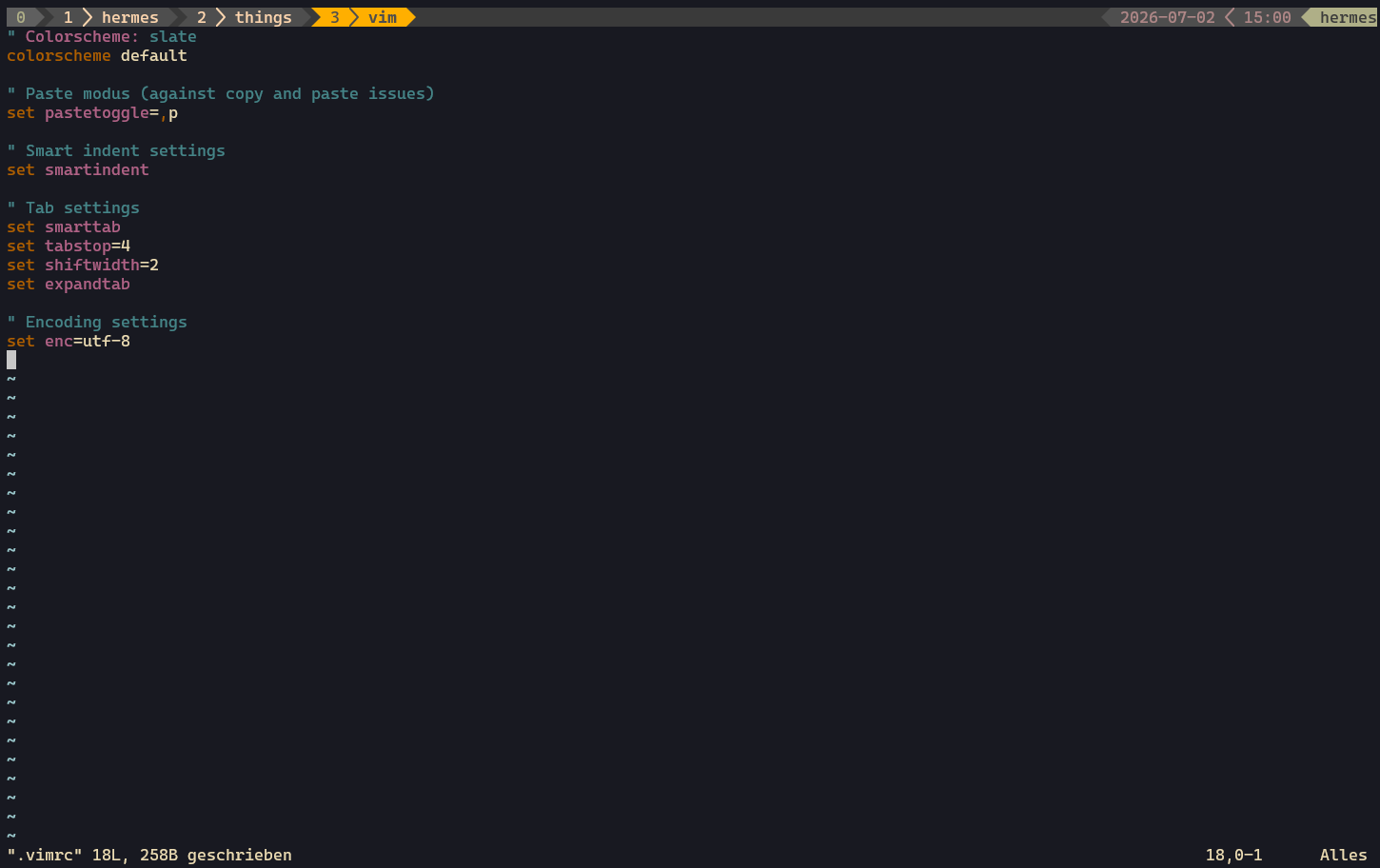
In this article, I'll show the minimal configuration I use on every Linux system. It provides consistent indentation, improves copy-and-paste behavior, and configures sensible tab settings. I'll also show how to use the same configuration when editing files with sudo.
Creating Your Personal Configuration
Vim stores per-user settings in a file called ~/.vimrc.
If the file doesn't exist yet, create it:
touch ~/.vimrc
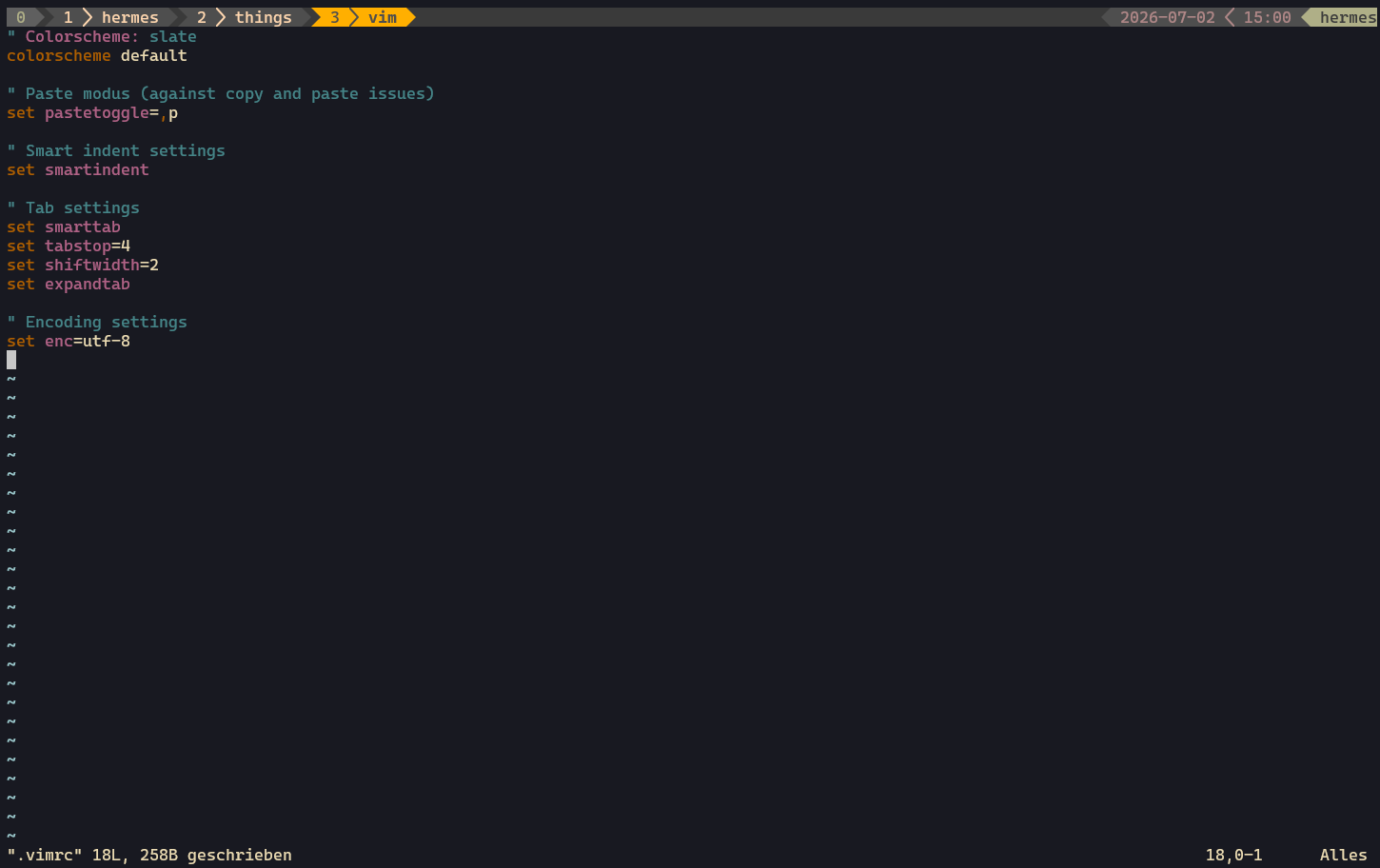
Then add the following configuration:
" Use Vim's default color scheme
colorscheme default

" Enable paste mode (helps when pasting code)
set pastetoggle=<F2>

" Enable smart indentation
set smartindent

" Tab settings
set smarttab
set tabstop=4
set shiftwidth=2
set expandtab

" Character encoding
set encoding=utf-8
What These Settings Do
Default Color Scheme
colorscheme default
Vim's default color scheme is clean, easy to read, and works well in most terminal emulators. Since it's included with every Vim installation, there's no need to install additional themes.
Paste Mode
set pastetoggle=<F2>
Pasting code into Vim can sometimes trigger automatic indentation, which may alter the formatting.
Press F2 to toggle Paste Mode before pasting large code snippets. Press F2 again to return to normal editing.
Smart Indentation
set smartindent
Automatically indents new lines based on the previous line, making it easier to write structured code.
Tab Configuration
set smarttab
set tabstop=4
set shiftwidth=2
set expandtab
These settings configure how indentation behaves:
- A tab character is displayed as 4 spaces
- Automatic indentation uses 2 spaces
- Pressing the Tab key inserts spaces instead of literal tab characters
This configuration works well for shell scripts, YAML, Ansible playbooks, and many other configuration files.
UTF-8 Encoding
set encoding=utf-8
Ensures Vim uses UTF-8, which is the standard character encoding on modern Linux systems.
Using the Same Configuration with sudo
When editing files as the root user, Vim loads root's configuration instead of your personal ~/.vimrc.
For example:
sudo vim /etc/ssh/sshd_config
will ignore your user-specific settings unless root has its own configuration.
To keep the editing experience consistent, simply copy your configuration to the root account:
sudo cp ~/.vimrc /root/.vimrc
From this point on, both your regular user account and the root user will use the same Vim configuration.
Whenever you make changes to your personal .vimrc, update root's copy as well:
sudo cp ~/.vimrc /root/.vimrc
This simple approach ensures that your preferred settings are always available, regardless of whether you're editing files as your normal user or with sudo.
Final Thoughts
A customized .vimrc doesn't need to be complicated. Just a handful of settings can make Vim much more comfortable to use while keeping the behavior consistent across systems.
My minimal configuration focuses on:
- Vim's clean default color scheme
- Better paste handling
- Automatic indentation
- Consistent tab behavior
- UTF-8 encoding
- The same editing experience for both regular and root users
It's a small configuration, but one that I install on every Linux system I work with.