Tmux – Configuration, Cheat Sheet, and Automated Installation with Ansible
Whether I'm developing locally, managing remote Linux servers over SSH, or running long-running processes, tmux allows me to keep everything organized and running—even if my SSH connection drops.

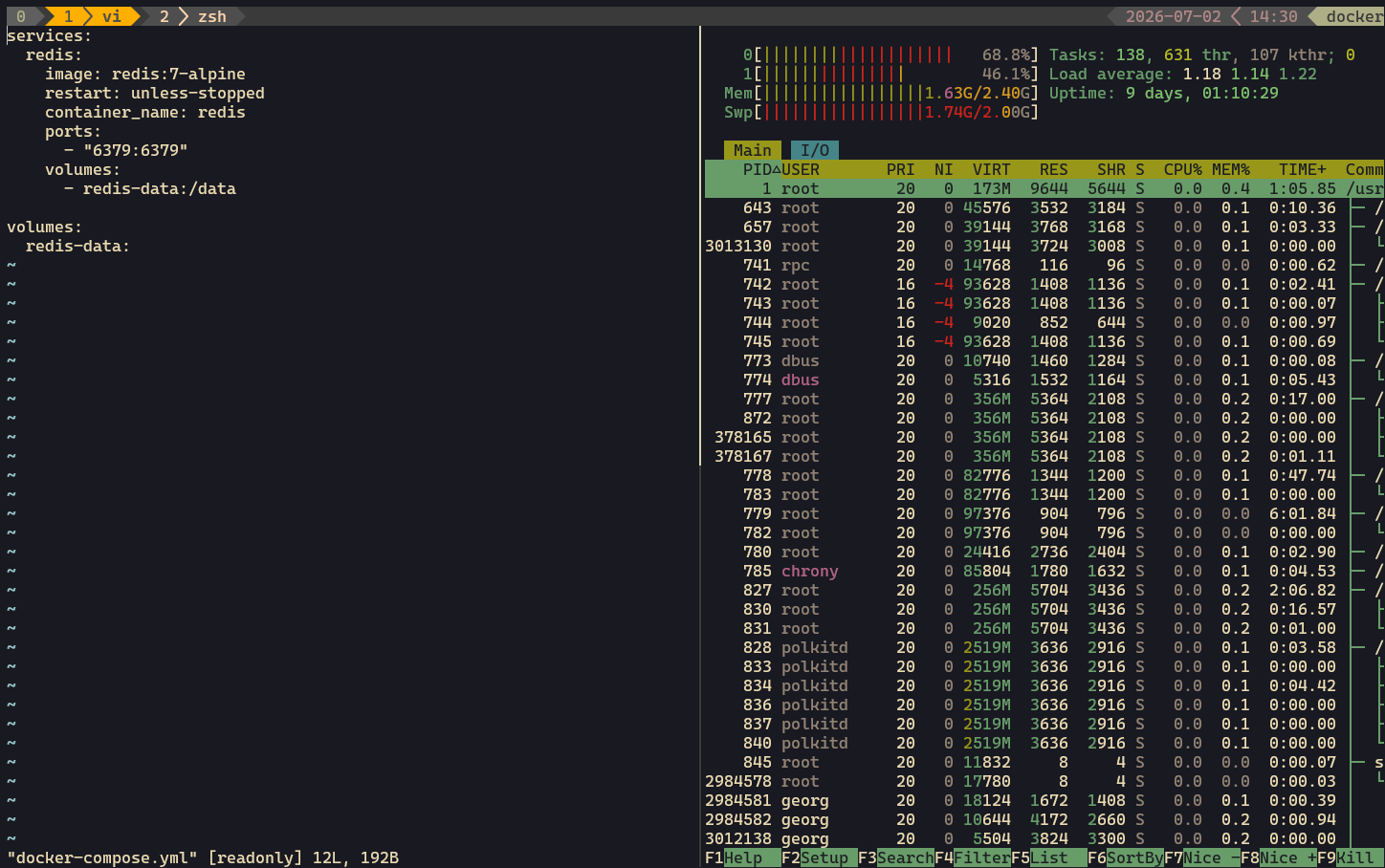
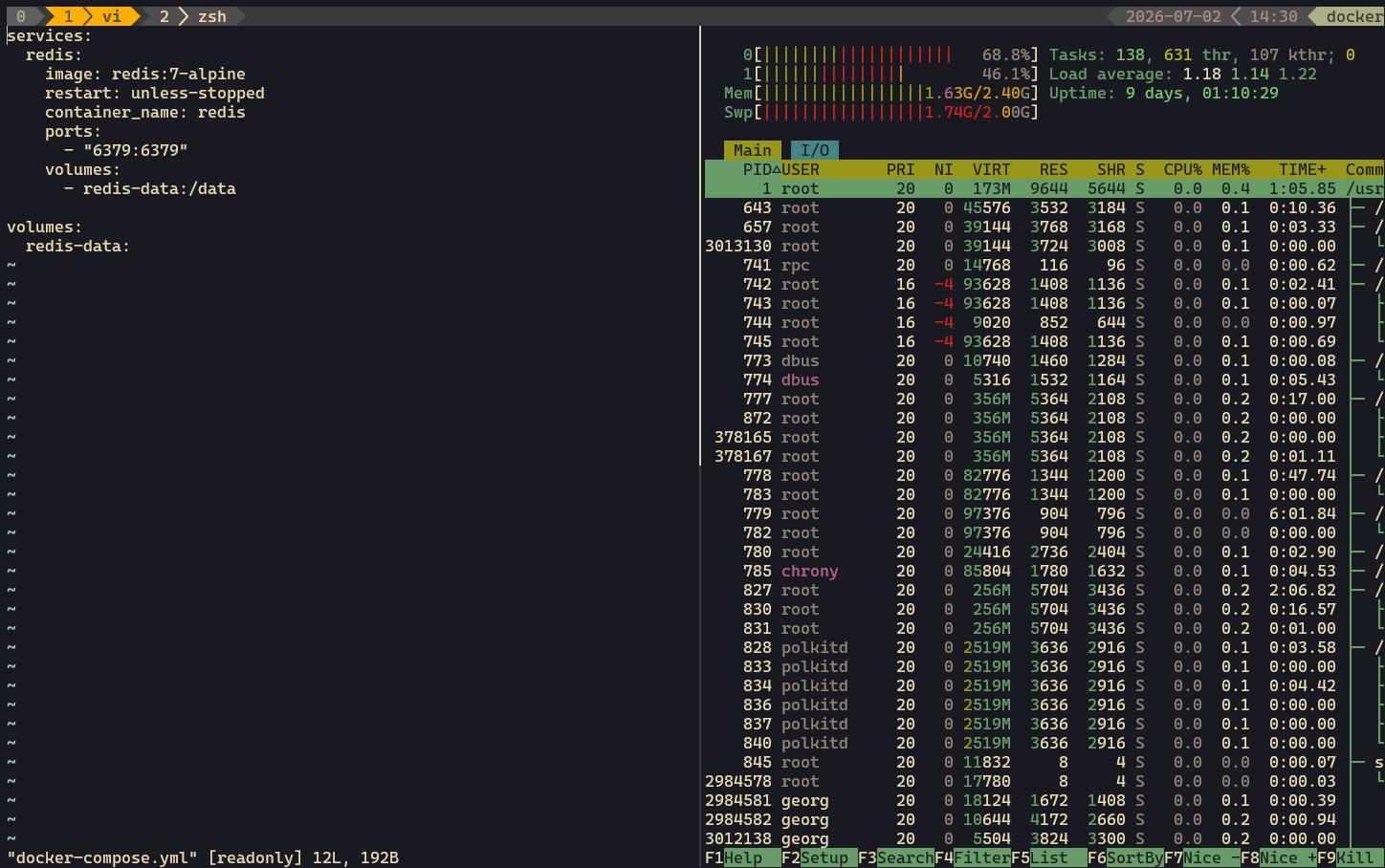
Over the years, I've refined my own tmux configuration to fit the way I work. It includes a custom prefix key, mouse support, clipboard integration, automatic session recovery, and a small collection of plugins that improve the overall experience.
In this article, I'll share my personal setup, explain the reasoning behind the configuration, provide a quick cheat sheet, and show how I automate the entire installation using Ansible.
Installing tmux
On Fedora, installing tmux is straightforward:
sudo dnf install tmux -y
I also install the following clipboard utilities:
xclipxsel
These packages allow tmux to interact properly with the system clipboard.
Why I Changed the Prefix Key
By default, tmux uses Ctrl+b as its prefix key.
I've always preferred using Ctrl+s because it feels more natural and is easier to reach while typing.
Unfortunately, Ctrl+s has a special meaning in most terminals: it enables XON/XOFF flow control, which pauses terminal output.
To disable this behavior, run:
stty -ixon
For a permanent solution, add the command to your shell configuration, for example:
~/.bashrc
or
~/.zshrc
Without this step, Ctrl+s will freeze your terminal instead of acting as the tmux prefix.
Installing TPM (Tmux Plugin Manager)
I use TPM to manage all tmux plugins.
Installation is simple:
git clone https://github.com/tmux-plugins/tpm ~/.tmux/plugins/tpm
After opening tmux for the first time, install all configured plugins by pressing:
Ctrl+s Shift+i
Since my prefix is Ctrl+s, this is equivalent to the default Prefix + I.
My tmux Cheat Sheet
Every shortcut starts with my custom prefix:
Ctrl+s
For example:
Ctrl+s c
creates a new window.
Session Management
| Action | Command |
|---|---|
| Start a new session | tmux |
| Start a named session | tmux new -s NAME |
| List sessions | tmux ls |
| Attach to a session | tmux attach -t NAME |
| Detach from current session | Ctrl+s d |
| Kill a session | tmux kill-session -t NAME |
Windows
| Action | Shortcut |
|---|---|
| New window | Ctrl+s c |
| Next window | Ctrl+s n |
| Previous window | Ctrl+s p |
| Switch by number | Ctrl+s 1-9 |
| Rename window | Ctrl+s , |
| Window list | Ctrl+s w |
| Close window | exit |
Panes
| Action | Shortcut |
|---|---|
| Split horizontally | Ctrl+s " |
| Split vertically | Ctrl+s % |
| Move between panes | Ctrl+s + Arrow Keys |
| Toggle pane zoom | Ctrl+s z |
| Close pane | exit |
Pane Layout
| Action | Shortcut |
|---|---|
| Cycle layouts | Ctrl+s Space |
| Move pane left | Ctrl+s { |
| Move pane right | Ctrl+s } |
Copy Mode
| Action | Shortcut |
|---|---|
| Enter Copy Mode | Ctrl+s [ |
| Scroll | Arrow Keys / Page Up |
| Start selection | Space |
| Copy selection | Enter |
| Paste | Ctrl+s ] |
I also added a custom shortcut:
Ctrl+y
which jumps directly into Copy Mode.
Command Mode
| Action | Shortcut |
|---|---|
| Command prompt | Ctrl+s : |
| Reload configuration | Ctrl+s : source-file ~/.tmux.conf |
| Display clock | Ctrl+s t |
My tmux Configuration
Below is the configuration I currently use on all of my systems.
unbind r
bind r source-file ~/.tmux.conf

set -g prefix C-s
set -g mouse on

set-option -g set-clipboard on

# Start numbering windows and panes at 1
set -g base-index 1
set -g pane-base-index 1

# Place the status bar at the top
set-option -g status-position top

# Plugins
set -g @plugin 'tmux-plugins/tpm'
set -g @plugin 'tmux-plugins/tmux-resurrect'
set -g @plugin 'tmux-plugins/tmux-continuum'
set -g @plugin 'egel/tmux-gruvbox'
set -g @plugin 'tmux-plugins/tmux-yank'

set -g @tmux-gruvbox 'dark'

# Launch Copy Mode using Ctrl+y
bind -n C-y copy-mode

# Initialize TPM
run '~/.tmux/plugins/tpm/tpm'
Configuration Breakdown
Reload the Configuration
unbind r
bind r source-file ~/.tmux.conf
Instead of restarting tmux after every change, I simply press:
Prefix + r
to reload the configuration.
Custom Prefix
set -g prefix C-s
Replaces the default Ctrl+b prefix with Ctrl+s.
Mouse Support
set -g mouse on
Enables mouse support for:
- Selecting panes
- Resizing panes
- Scrolling
- Switching windows
Although I mainly work with keyboard shortcuts, mouse support is occasionally convenient.
Clipboard Integration
set-option -g set-clipboard on
This allows tmux to synchronize copied text with the system clipboard, making copy-and-paste much smoother.
Window Numbering
set -g base-index 1
set -g pane-base-index 1
By default, tmux starts numbering windows and panes at zero.
I prefer starting at 1, which feels more intuitive.
Status Bar Position
set-option -g status-position top
Instead of displaying the status bar at the bottom, I place it at the top of the terminal.
Plugins I Use
I intentionally keep my plugin list small.
tmux-resurrect
Saves the complete tmux session, including windows, panes, and commands.
tmux-continuum
Automatically saves sessions in the background and restores them after restarting tmux.
tmux-yank
Improves clipboard integration by making copied text available outside of tmux.
tmux-gruvbox
Provides a clean Gruvbox-inspired color theme.
TPM
The official plugin manager used to install and update all tmux plugins.
Automating Everything with Ansible
Whenever I set up a new workstation or server, I don't install tmux manually.
Instead, I use an Ansible playbook that performs the complete setup automatically.
The playbook:
- installs tmux
- installs Git
- installs clipboard utilities (
xclipandxsel) - downloads TPM
- creates the plugin directory
- writes my complete
~/.tmux.conf - disables XON/XOFF by adding
stty -ixonto.bashrc
---
- name: Install and configure tmux
  hosts: linux
  become: true

  vars:
    tmux_home: "/home/{{ tmux_user }}"

    tmux_conf: |
      unbind r
      bind r source-file ~/.tmux.conf

      set -g prefix C-s
      set -g mouse on

      set-option -g set-clipboard on

      set -g base-index 1
      set -g pane-base-index 1

      set-option -g status-position top

      set -g @plugin 'tmux-plugins/tpm'
      set -g @plugin 'tmux-plugins/tmux-resurrect'
      set -g @plugin 'tmux-plugins/tmux-continuum'
      set -g @plugin 'egel/tmux-gruvbox'
      set -g @plugin 'tmux-plugins/tmux-yank'

      set -g @tmux-gruvbox 'dark'

      bind -n C-y copy-mode

      run '~/.tmux/plugins/tpm/tpm'

  tasks:

    - name: Install tmux and clipboard tools
      ansible.builtin.dnf:
        name:
          - tmux
          - git
          - xclip
          - xsel
        state: present

    - name: Ensure plugin directory exists
      ansible.builtin.file:
        path: "{{ tmux_home }}/.tmux/plugins"
        state: directory
        owner: "{{ tmux_user }}"
        group: "{{ tmux_user }}"
        mode: "0755"

    - name: Install TPM plugin manager
      ansible.builtin.git:
        repo: https://github.com/tmux-plugins/tpm
        dest: "{{ tmux_home }}/.tmux/plugins/tpm"
      become_user: "{{ tmux_user }}"

    - name: Write tmux configuration
      ansible.builtin.copy:
        dest: "{{ tmux_home }}/.tmux.conf"
        content: "{{ tmux_conf }}"
        owner: "{{ tmux_user }}"
        group: "{{ tmux_user }}"
        mode: "0644"

    - name: Disable XON/XOFF so Ctrl+s works
      ansible.builtin.lineinfile:
        path: "{{ tmux_home }}/.bashrc"
        line: "stty -ixon"
        create: true
        owner: "{{ tmux_user }}"
        group: "{{ tmux_user }}"
        mode: "0644"
Using Ansible ensures that every machine receives the exact same configuration, making new installations fast, consistent, and reproducible.
Final Thoughts
This configuration reflects the workflow I've refined over time. It stays close to the default tmux experience while adding a few quality-of-life improvements that make a noticeable difference in day-to-day use.
My favorite features include:
Ctrl+sas a more comfortable prefix- Mouse support
- Clipboard integration
- Automatic session persistence with
tmux-resurrectandtmux-continuum - Simple plugin management with TPM
- Fully automated deployment using Ansible
Whether you're setting up a development workstation or managing remote Linux servers, this configuration provides a solid starting point that is both lightweight and practical. Feel free to adapt it to your own workflow and build on top of it.