Enabling Virtualization-Based Security (VBS) for VMware Virtual Machines with PowerCLI
Virtualization-Based Security (VBS) is a Microsoft security technology that leverages hardware virtualization to isolate sensitive operating system components from the rest of the system.

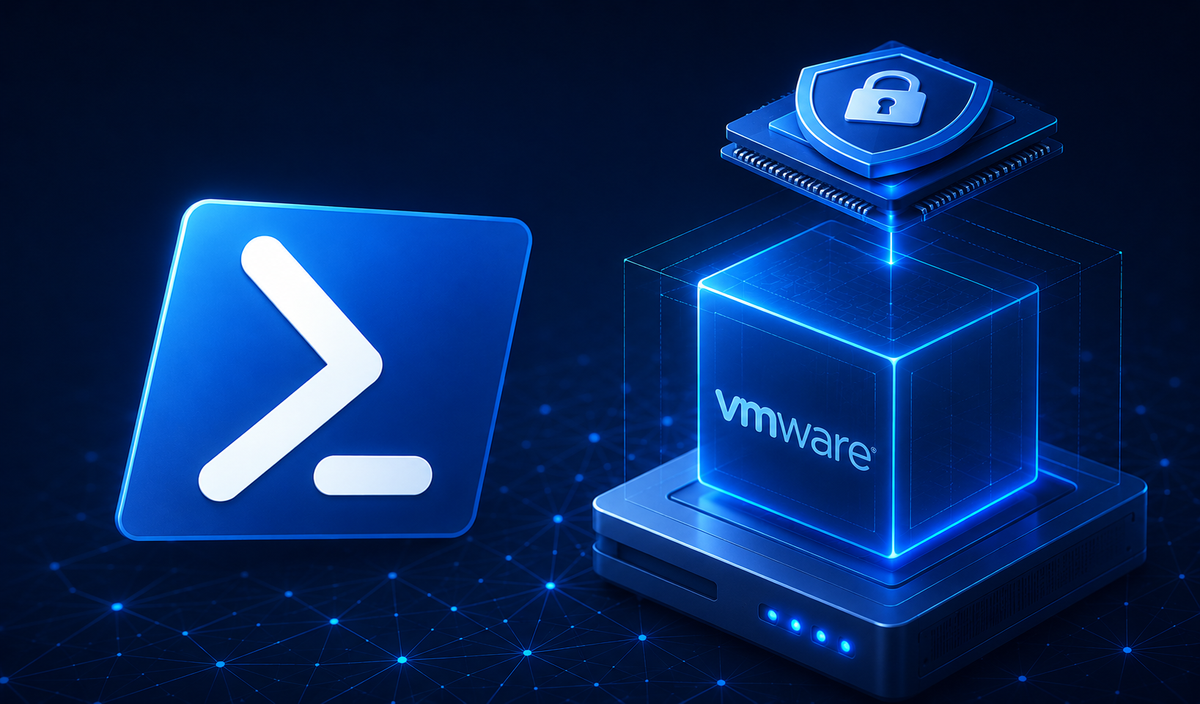
Features such as Credential Guard and Hypervisor-Protected Code Integrity (HVCI) depend on VBS being enabled.When deploying Windows virtual machines on VMware vSphere, several virtual hardware features must be configured before VBS can be activated.This article demonstrates how to enable all required settings using VMware PowerCLI.
Prerequisites
To support VBS, the virtual machine must meet the following requirements:
Virtual Hardware
The VM must be configured with:
- UEFI firmware
- Secure Boot
- Nested Hardware Virtualization
- Intel Virtualization Technology for Directed I/O (vVTD)
Supported Guest Operating Systems
VBS is supported on:
- Windows 10 (64-bit) or later
- Windows Server 2016 or later
Retrieve the Virtual Machine
First, retrieve the virtual machine object.
$VM = Get-VM -Name "<VM-Name>"
This object will be used for all subsequent configuration changes.
Configure UEFI and Secure Boot
The first step is to switch the virtual machine from BIOS to UEFI and enable Secure Boot.
Important: The VM must be powered off before changing firmware settings.
If ($VM.GuestId -match "^windows9(_|Server)64Guest$") {

    $Spec = New-Object VMware.Vim.VirtualMachineConfigSpec
    $Spec.Firmware = [VMware.Vim.GuestOsDescriptorFirmwareType]::efi

    $BootOptions = New-Object VMware.Vim.VirtualMachineBootOptions
    $BootOptions.EfiSecureBootEnabled = $true

    $Spec.BootOptions = $BootOptions

    $VM.ExtensionData.ReconfigVM($Spec)
}
After this configuration completes successfully, the virtual machine is configured to boot using UEFI with Secure Boot enabled.
Enable VBS, vVTD and Nested Virtualization
Once UEFI and Secure Boot are enabled, configure the remaining virtualization features required for VBS.
If ($VM.GuestId -match "^windows9(_|Server)64Guest$") {

    $Spec = New-Object VMware.Vim.VirtualMachineConfigSpec

    $Flags = New-Object VMware.Vim.VirtualMachineFlagInfo
    $Flags.VvtdEnabled = $true
    $Flags.VbsEnabled = $true

    $Spec.Flags = $Flags
    $Spec.NestedHVEnabled = $true

    $VM.ExtensionData.ReconfigVM($Spec)
}
This configuration enables:
- Virtualization-Based Security (VBS)
- Intel Virtualization Technology for Directed I/O (vVTD)
- Nested Hardware Virtualization
Configure Windows
After installing Windows, VBS must still be enabled within the operating system.
The easiest method is through Group Policy.
Navigate to:
Computer Configuration
└─ Administrative Templates
   └─ System
      └─ Device Guard
Configure the following policies:
| Policy | Recommended Setting |
|---|---|
| Select Platform Security Level | Secure Boot and DMA Protection |
| Virtualization Based Protection of Code Integrity | Enabled with UEFI Lock |
| Credential Guard Configuration | Enabled with UEFI Lock |
After applying the Group Policy, restart the virtual machine.
Verify VBS
Windows provides several methods to verify that VBS is operational.
System Information
Run:
msinfo32
Look for:
- Virtualization-based security: Running
- Credential Guard: Running (if enabled)
PowerShell
You can also verify the status with:
Get-CimInstance Win32_DeviceGuard
The output shows whether:
- Virtualization-Based Security is enabled
- Credential Guard is running
- Hypervisor-Protected Code Integrity (HVCI) is active
Notes
- The virtual machine must be powered off before changing firmware or virtual hardware settings.
- Changing from BIOS to UEFI after Windows has already been installed may render the operating system unbootable unless the installation is converted appropriately.
- vVTD requires a compatible ESXi version and virtual hardware version.
- Nested Hardware Virtualization should only be enabled when required, as it introduces a small virtualization overhead.
Summary
Enabling Virtualization-Based Security on VMware virtual machines requires more than simply enabling a Group Policy. The virtual hardware must first provide the necessary platform capabilities.
The overall process consists of:
- Power off the virtual machine.
- Enable UEFI firmware.
- Enable Secure Boot.
- Enable vVTD.
- Enable Nested Hardware Virtualization.
- Enable VBS.
- Install Windows (or convert an existing installation if applicable).
- Configure Device Guard policies via Group Policy.
- Verify that VBS is running.
Using PowerCLI allows these settings to be applied consistently across large VMware environments, making it ideal for automated deployments and security baselines.