Deploying and Managing Group Managed Service Accounts (gMSA) in Active Directory
Group Managed Service Accounts (gMSAs) simplify service account management in Active Directory by automatically handling password changes and reducing administrative overhead.


They are commonly used for services such as Microsoft SQL Server, IIS, scheduled tasks, and other Windows services that require domain authentication.
This article walks through the complete lifecycle of a gMSA—from preparing the Key Distribution Service (KDS) to installation, verification, and troubleshooting.
Prerequisites
Before creating a gMSA, ensure that:
- Active Directory is running at a supported functional level.
- At least one domain controller is running Windows Server 2012 or later.
- The Key Distribution Service (KDS) root key has been created.
- The target servers are members of the domain.
Prepare the KDS Root Key
The KDS root key is required before any gMSA can be created.
First, verify whether a KDS root key already exists:
Get-KdsRootKey
Normally, a newly created KDS root key requires up to 10 hours before it becomes usable across the domain.
For lab environments or when immediate deployment is required, create the key with a backdated effective time:
Add-KdsRootKey -EffectiveTime ((Get-Date).AddHours(-10))
Verify that the key is functioning correctly:
Test-KdsRootKey -KeyId (Get-KdsRootKey).KeyId
Expected output:
True
To list existing group Managed Service Accounts:
Get-ADServiceAccount -Filter *
Creating a gMSA
The following example creates a new Managed Service Account with modern Kerberos encryption settings.
$name = "gSRV0001"
$description = "20230303/Georg/MSSQL"
$serviceID = "100"
$domain = "example.local"

New-ADServiceAccount `
    -Name $name `
    -DNSHostName $domain `
    -PrincipalsAllowedToRetrieveManagedPassword "GM_ServiceAccount" `
    -KerberosEncryptionType "AES128,AES256" `
    -ManagedPasswordIntervalInDays 30 `
    -Description $description `
    -OtherAttributes @{
        employeeNumber = $serviceID
    }
The account is configured with:
- AES128 and AES256 Kerberos encryption
- 30-day managed password rotation
- A custom description
- A service identifier stored in the
employeeNumberattribute
Allow Automatic SPN Registration
For applications such as Microsoft SQL Server, the gMSA should be allowed to register its own Service Principal Names (SPNs).
Grant the required permissions:
dsacls (Get-ADServiceAccount -Identity $name).DistinguishedName /G "SELF:RPWP;servicePrincipalName"
This allows the account to automatically maintain its SPNs without requiring manual administration.
Authorize Servers to Use the gMSA
The target computer must be added to the security group specified in PrincipalsAllowedToRetrieveManagedPassword.
Important: Computer objects require a trailing
$.
Add-ADGroupMember -Identity GM_ServiceAccount -Members SqlServer$
Install the Required PowerShell Module
If the Active Directory PowerShell module is not installed:
Install-WindowsFeature -Name RSAT-AD-PowerShell
A reboot is recommended before installing the service account.
Install the gMSA on the Server
After restarting, verify that the server can use the account.
Test-ADServiceAccount gSRV0001
If the result is True, install the account:
Install-ADServiceAccount gSRV0001
Finally, configure the Windows Service or Scheduled Task to run using the gMSA.
Grant "Log on as a service"
After installing the gMSA, Windows must allow the account to start services. This is controlled by the Log on as a service user right.
On standalone servers or for testing, open:
Local Security Policy
└─ Security Settings
└─ Local Policies
└─ User Rights Assignment
└─ Log on as a service
Add your gMSA account (for example DOMAIN\gSRV0001$) to the policy.
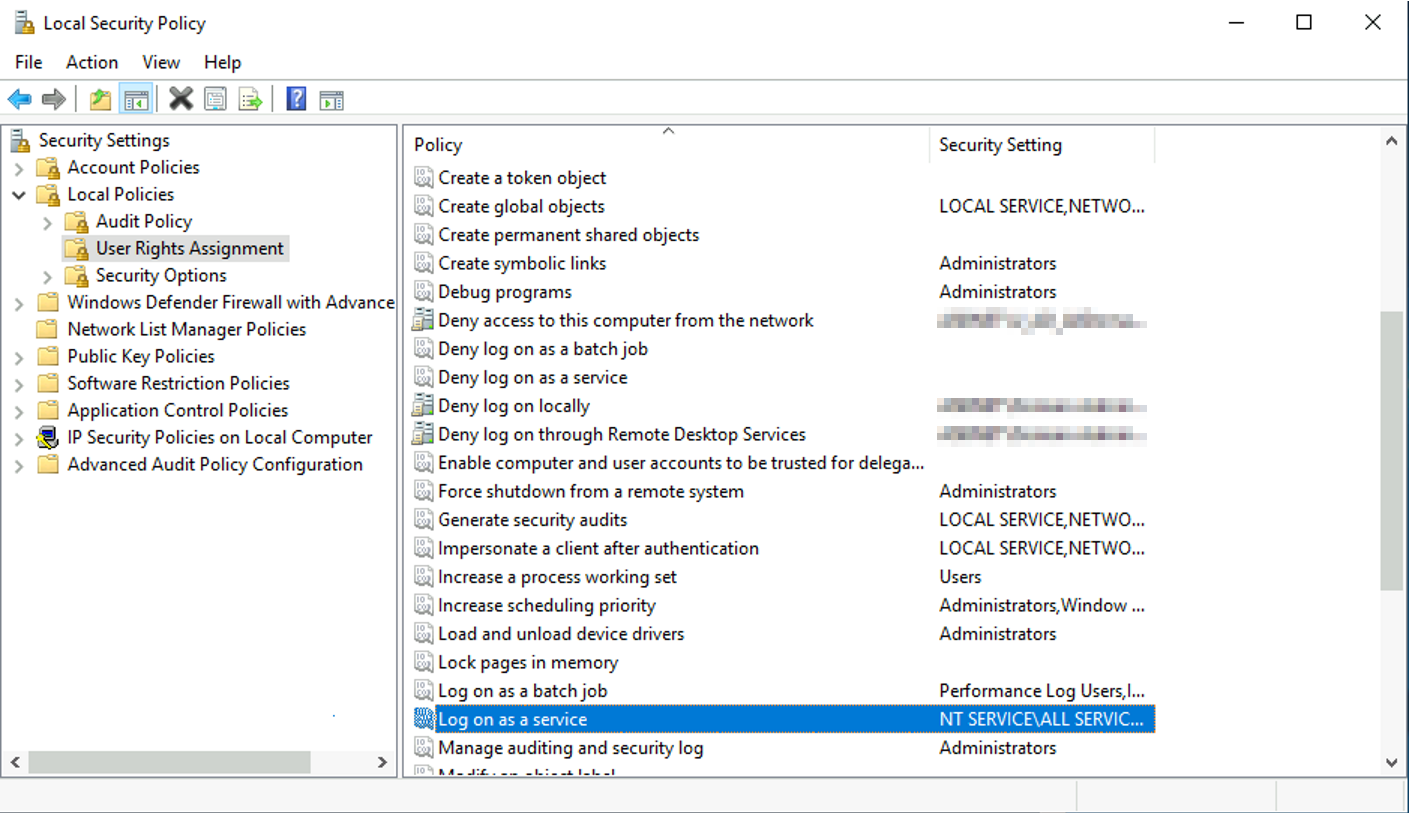
Note: Group Managed Service Accounts always include a trailing $ when referenced as security principals.
If the server is managed by Group Policy, configure the setting instead under:
Computer Configuration
└─ Windows Settings
└─ Security Settings
└─ Local Policies
└─ User Rights Assignment
└─ Log on as a service
Using Group Policy is the recommended approach for production environments because local settings may be overwritten during the next policy refresh.
Verify Service Principal Names (SPNs)
If the account is being used by Microsoft SQL Server, it can automatically register its required SPNs.
Verify the registered SPNs:
setspn -L gSRV0001
Example output:
Registered ServicePrincipalNames for CN=gSRV0001,CN=Managed Service Accounts,DC=example,DC=local:

    MSSQLSvc/SqlServer.example.local:58306
    MSSQLSvc/SqlServer.example.local:I1
If the SPNs appear correctly, Kerberos authentication should function without manual SPN management.
View Group Membership
To display the groups a gMSA belongs to:
Get-ADServiceAccount -Identity gSRV0001 -Properties memberof |
    Select-Object memberof
Update the Description Later
If no description was specified during creation, it can be added afterwards:
Set-ADServiceAccount gSRV0001 `
    -Add @{
        Description = "20251203/Georg/MSSQL"
    }
Useful Information About the Account
Retrieve common properties:
Get-ADServiceAccount gSRV0001 -Properties * |
    Select-Object `
        PrincipalsAllowedToRetrieveManagedPassword,
        KerberosEncryptionType,
        Description,
        memberof,
        employeeNumber
Troubleshooting
Installation Fails Although Permissions Look Correct
One of the most common issues occurs when the computer has recently been added to the security group that is allowed to retrieve the managed password.
Although Active Directory membership has already changed, the computer's Kerberos ticket may still contain the old group membership information.
View the active Kerberos sessions:
klist sessions
Purge the Local System Kerberos tickets (example session IDs):
klist purge -li 0x3e4
klist purge -li 0x3e7
Alternatively, simply reboot the server.
After renewing the Kerberos tickets, the following command should succeed:
Test-ADServiceAccount gSRV0001
Summary
Group Managed Service Accounts significantly reduce the operational overhead of managing traditional service accounts. Once the KDS root key is available and the appropriate computer accounts are authorized, deployment is straightforward:
- Create or verify the KDS root key.
- Create the gMSA.
- Grant SPN self-registration (if required).
- Add the target server to the authorized security group.
- Install the AD PowerShell module.
- Reboot the server.
- Test and install the gMSA.
- Configure your Windows Service or Scheduled Task to use the account.
Using gMSAs eliminates manual password management while improving security and making service authentication more reliable.